Reviews / QA
Reviews let you score a communication against a structured scorecard, so quality, compliance and coaching feedback all get captured in the same shape every time. Think of it like a survey about the communication.
Your scorecards are built for you by an administrator, so what you see will be specific to your account. Typically they cover things like:
- Call quality, greeting, professionalism and how the call was resolved
- Compliance checks, such as confirming a mandatory statement was read
- Coaching notes with a follow-up date
- Escalation or dispute triage
If you can't see the Reviews tab, the feature isn't switched on for your account. Admins can turn it on in Account settings.
Finding a communication to review
Reviews are added from the communications screen. Find the communication you want using search, your filters or the results grid.
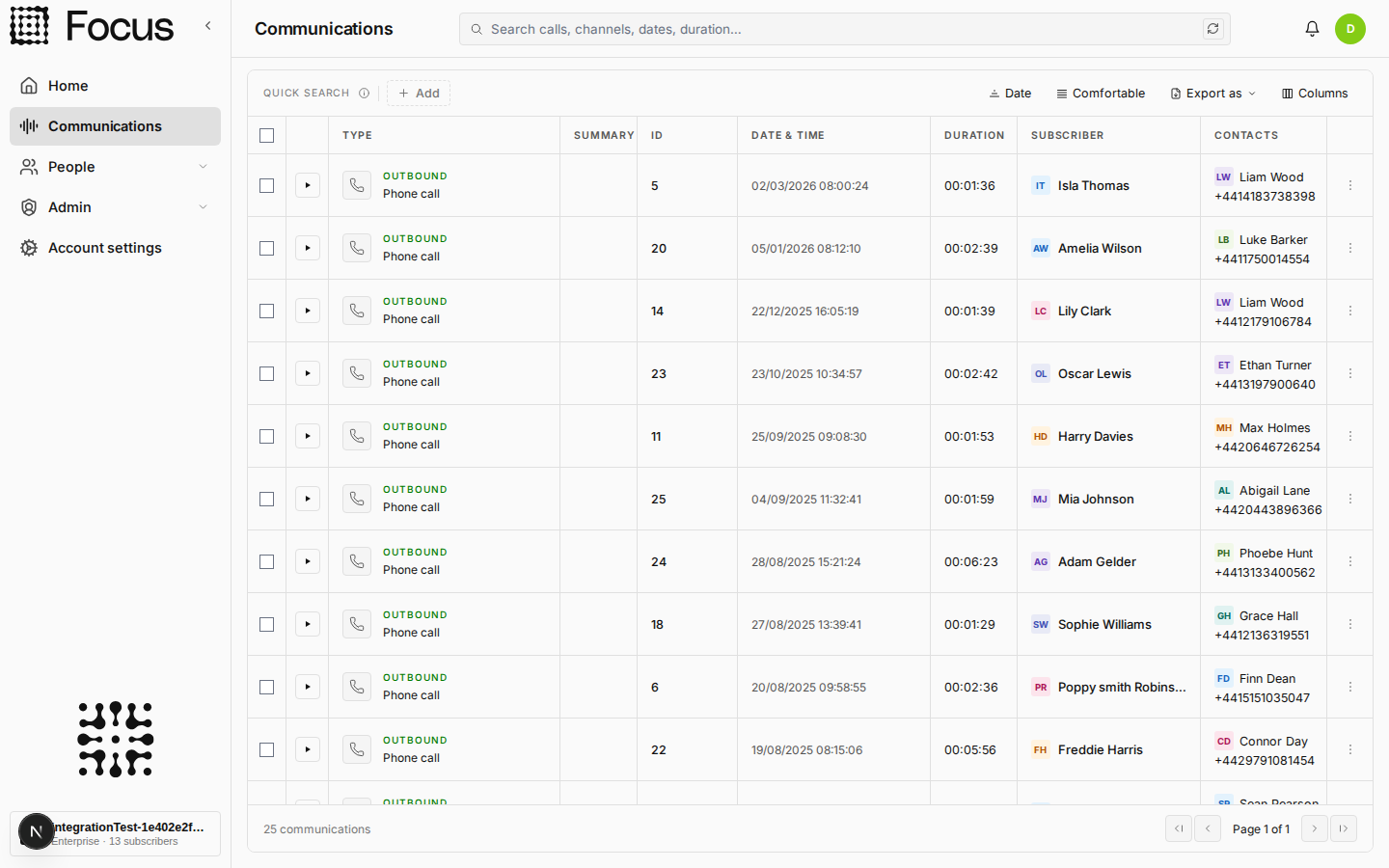
Open the communication's details view and select the Reviews tab, which sits alongside Transcript, Insights and Metadata. If nobody has reviewed it yet you'll get an empty state with a New review button.
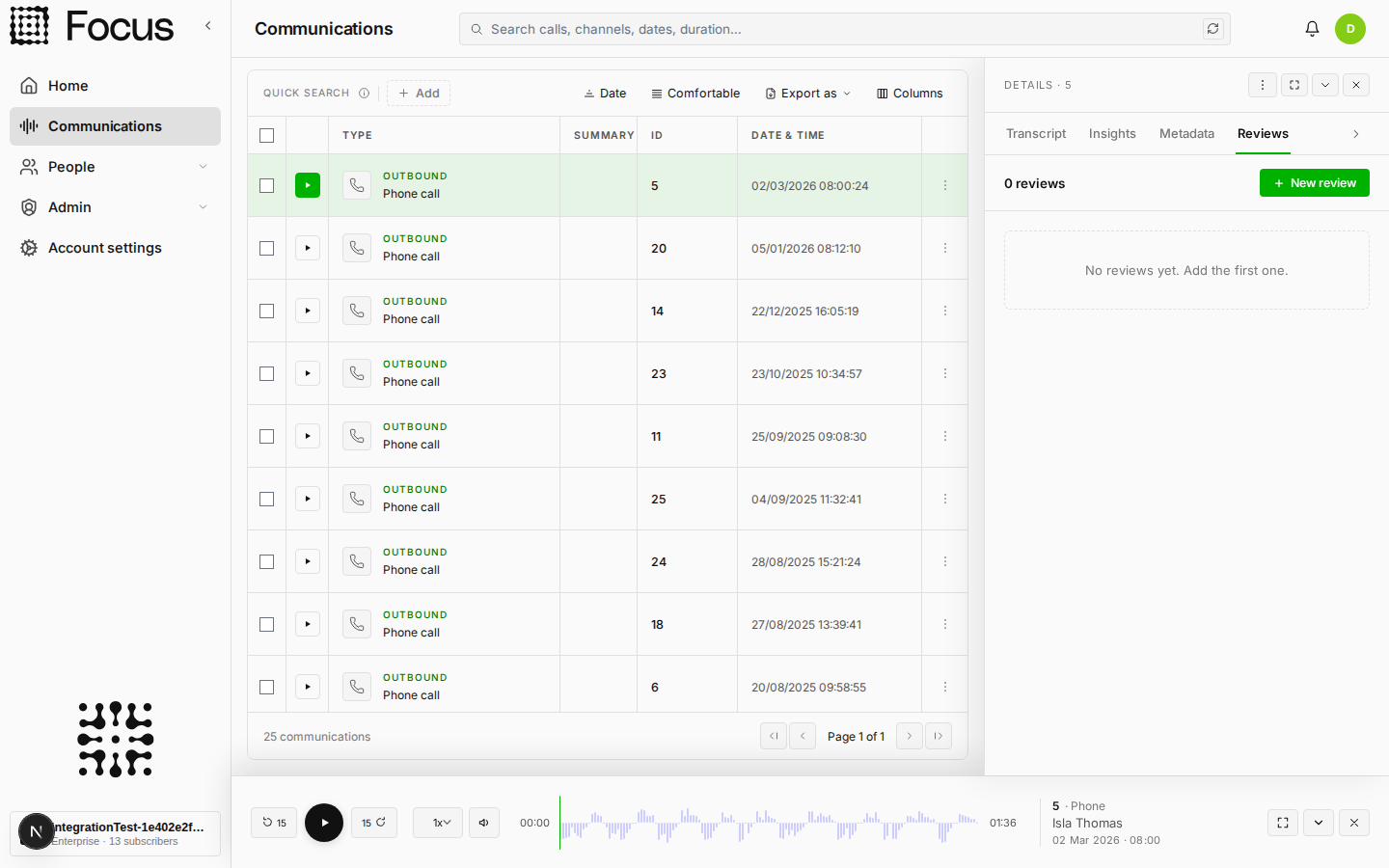
Adding a review
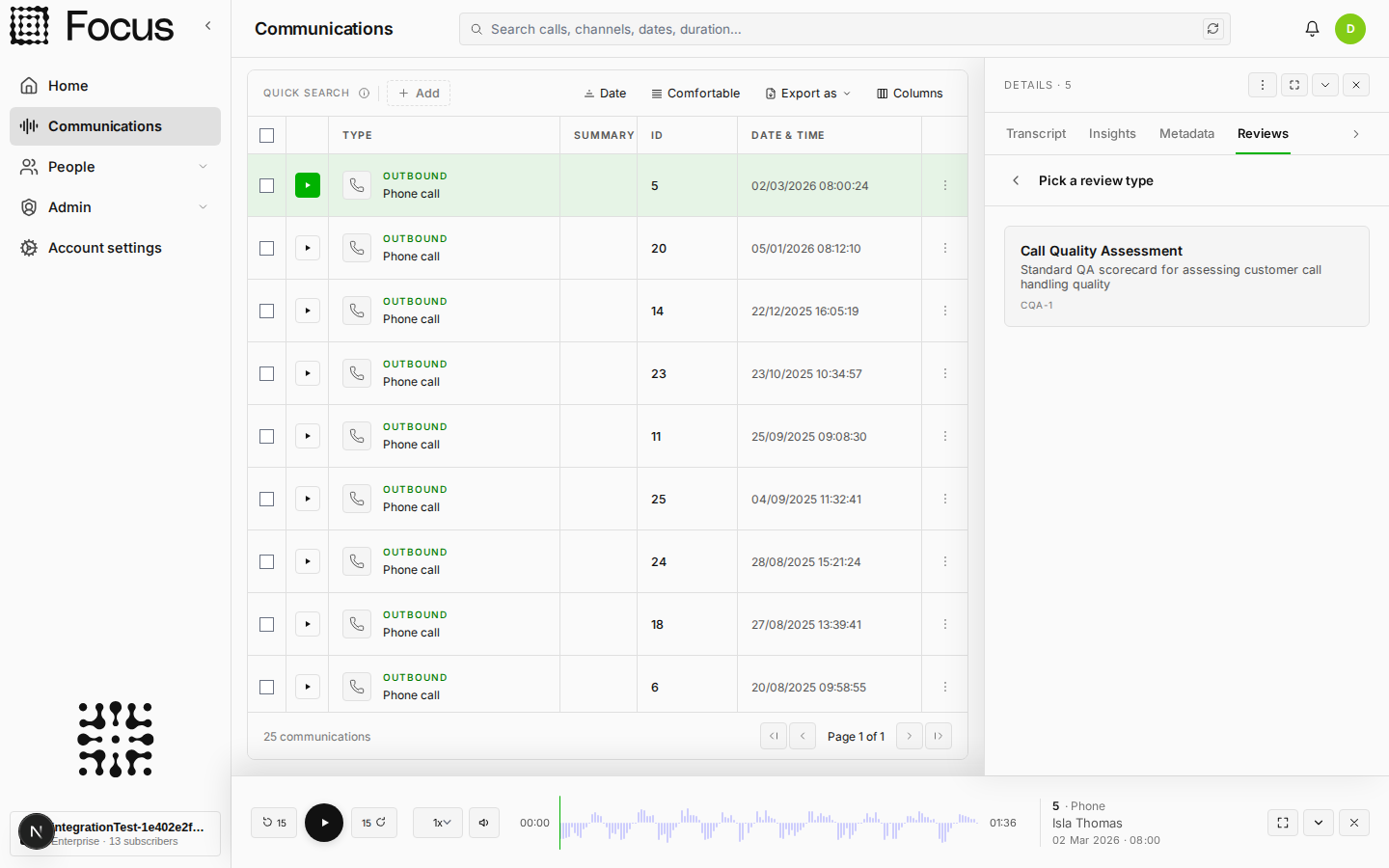
Press New review and pick which scorecard you want to fill in. You'll see every active scorecard on your account, with its name, summary and code.
The form loads with its questions, helper text and required markers (*).
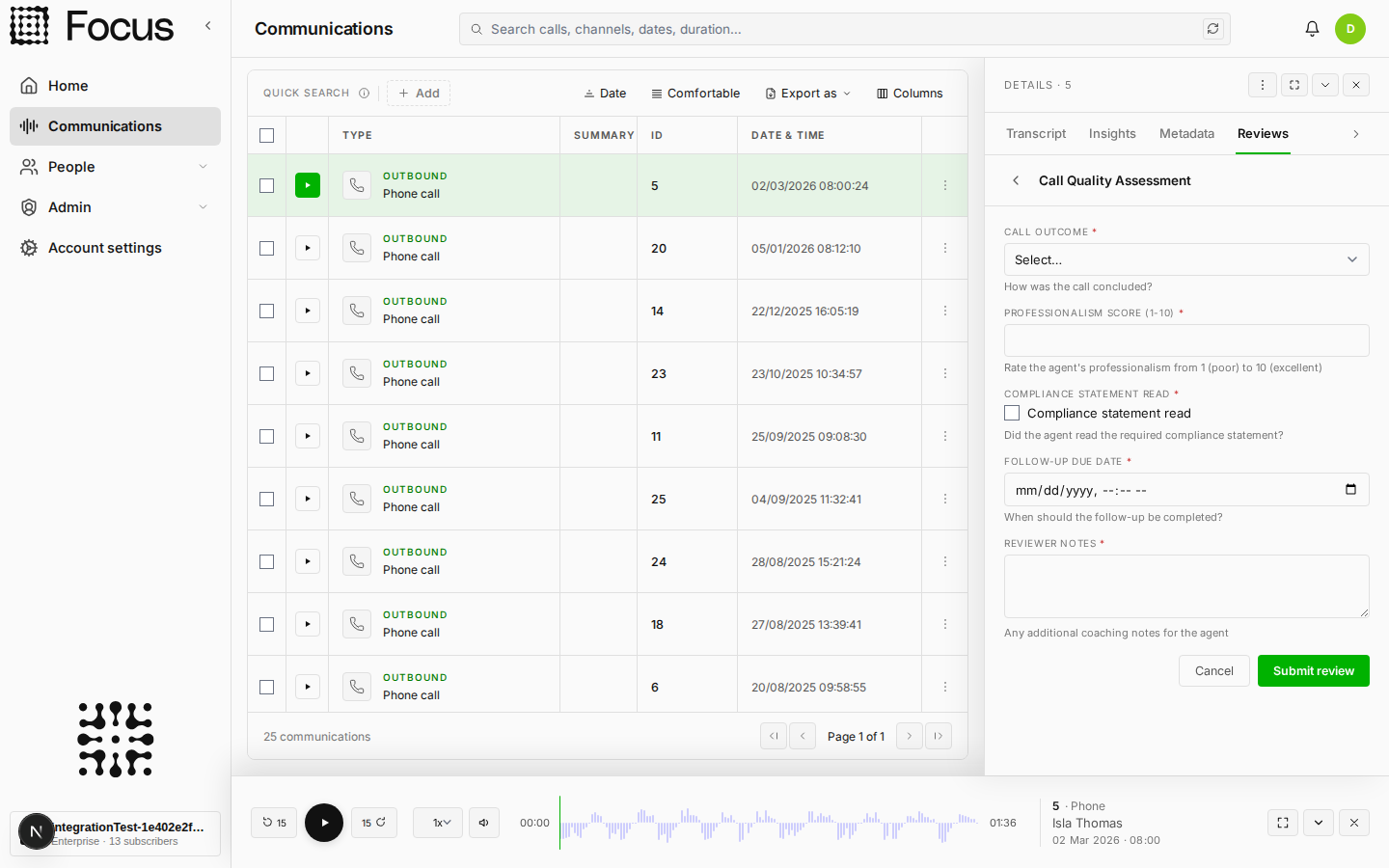
Some questions only appear once they're relevant. In the example below, choosing Escalated as the call outcome brings up an Escalation reason question that wasn't there a moment ago. That's expected, just fill in whatever appears.
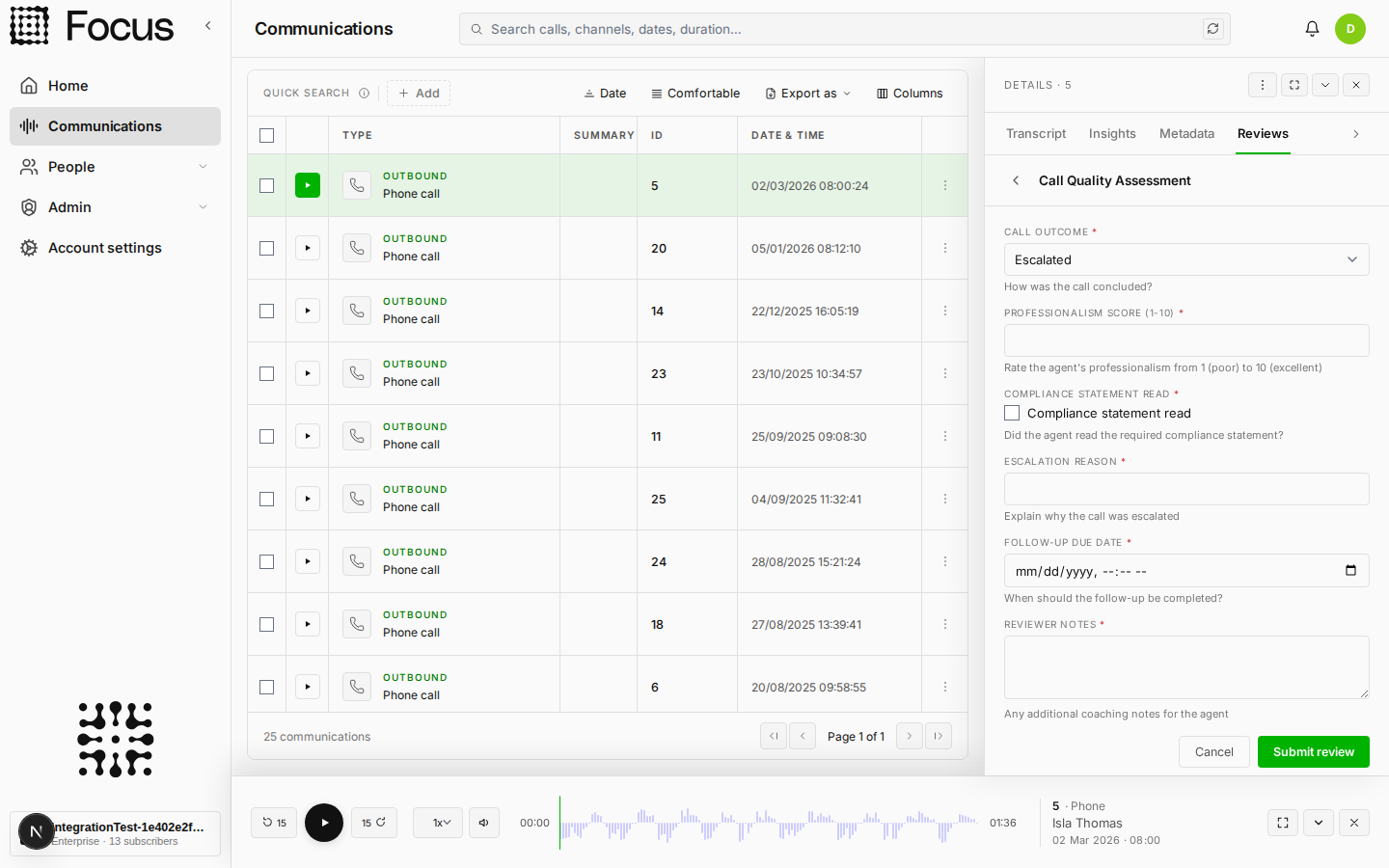
You can play the communication back while you're filling in the review. This is normally important, as the questions tend to link directly to things happening during the call.
Work through the form and fill it in.
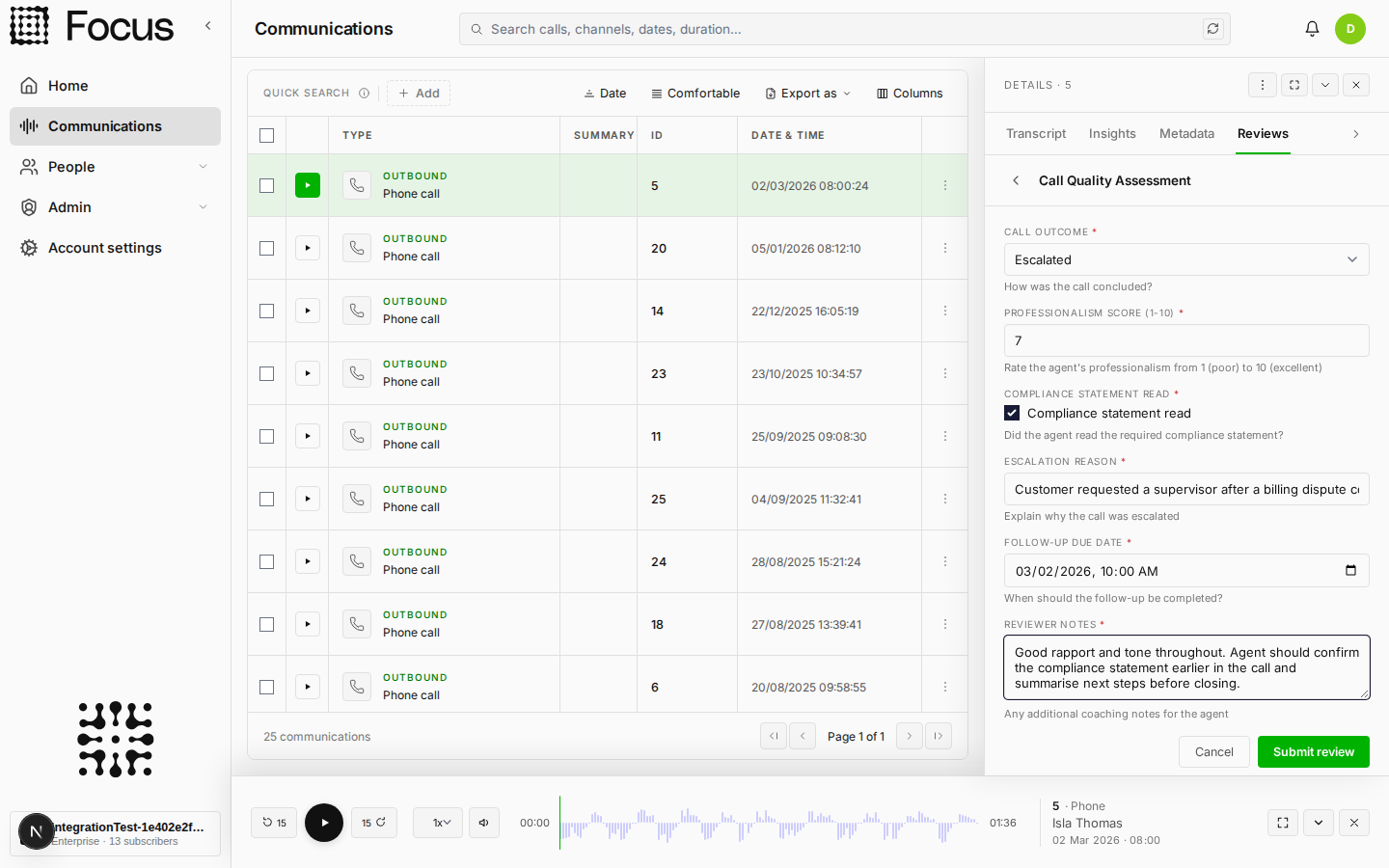
Press Submit review. Anything required that you've missed will be flagged at this point, with a message explaining what's needed.
Viewing reviews
Once submitted, the review is stored against the communication with your name, a timestamp and which scorecard was used, and shows up straight away in the Reviews tab.
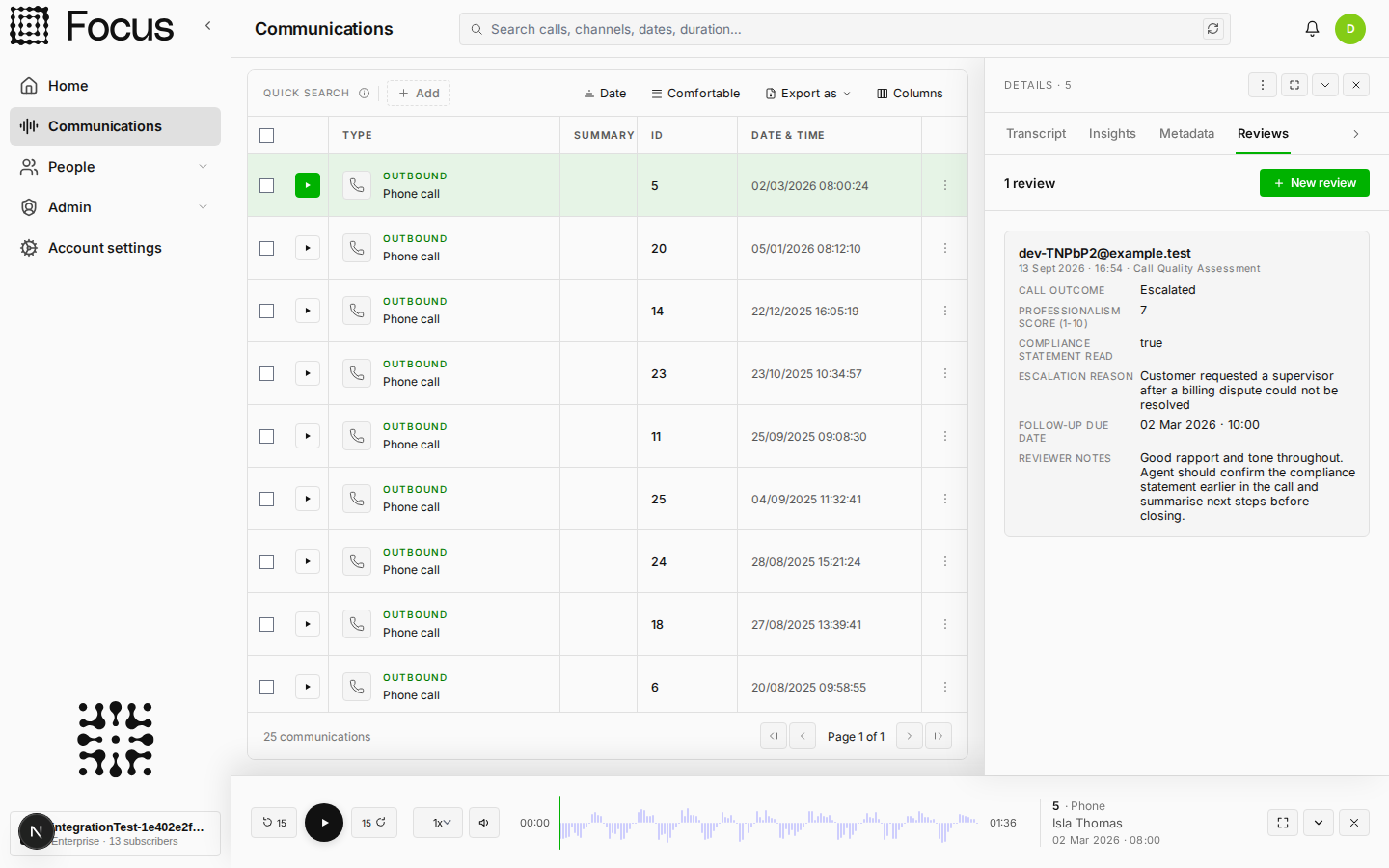
More reviews can be added to the same communication over time, so you can see how it's been assessed and by who. If you have access to the reports screen, scores across all communications can be pulled out into a report.
Review before playback
Your account may be set up so that a review has to be completed before you can listen to a communication. If so, opening a recording nobody has reviewed yet will block the playback bar and hold you on the Reviews tab until you submit one. Once it's saved, playback unlocks and works as normal.
Building or changing the scorecards themselves is an admin job, covered in Communication Reviews.